The extension
Check the site you are looking at, without leaving it.
One button in the toolbar. Free, and the whole of what it does fits in a table.
The whole of what it does, and what it does not.
One button in the toolbar. Click it on any business website and the free check opens with that address already filled in. Most extensions ask you to trust them, so here is the entire thing in a table instead.
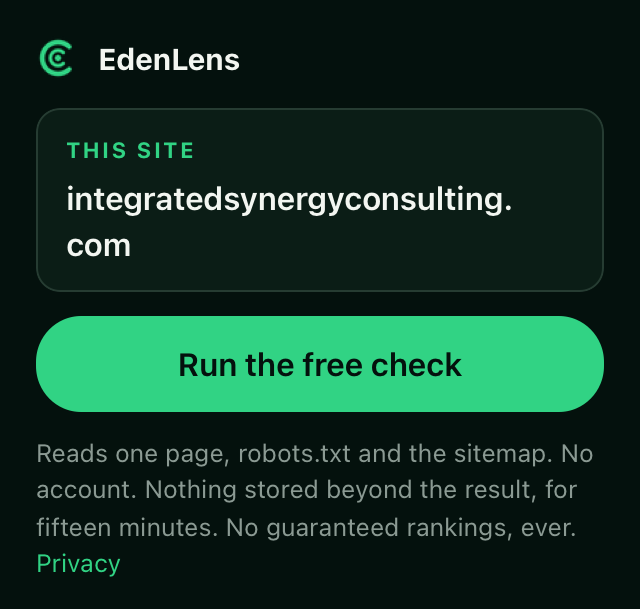
The whole interface. There is no second screen.
EdenLens for Chrome
Version 1.0.0. Free. Works in Edge and Brave through the same link.
| Permissions requested | One. activeTab, which Chrome grants
only for the tab you clicked, and only at the moment you click it. |
| Page content read | None. Not the text, not the form fields, not your other tabs. |
| Runs in the background | Never. Nothing happens until you click. |
| What leaves the browser | The web address of the tab you chose, so the check knows what to look at. |
| Account needed | None. |
| Kept afterwards | Nothing beyond the result, for fifteen minutes. |
| Safari | Submitted to Apple and waiting on review. No date, because Apple does not give one. |
The privacy page says the same thing in sentences.
Install it in about a minute.
Four steps. Chrome’s own instructions leave out the third one, and it is the one people get stuck on.
- Open the listing. Press Add to Chrome here or in the menu bar. It opens the Chrome Web Store listing, which is the only place the extension is published. Anything called EdenLens offered anywhere else is not ours.
- Add it. On the listing press Add to Chrome, then Add extension when Chrome asks you to confirm. It installs in a second or two and Chrome shows a small confirmation by the toolbar.
- Pin it to the toolbar. Chrome keeps new extensions hidden, so the button is not visible yet. Click the puzzle-piece icon to the right of the address bar, find EdenLens in the list and click the pin beside it. The green EdenLens mark now sits in the toolbar. If the button is ever missing, this is why.
- Use it. Go to any business website and click the mark. The popup names the site you are on; press Run the free check and EdenLens opens in a new tab with that address already in the box. The check starts from your click, never on its own.
Edge and Brave. Same listing, same steps. Edge first shows a bar across the top of the store asking you to Allow extensions from other stores; press Allow, then carry on from step 2. In Edge the pin is the eye icon beside the extension in the Extensions menu. Brave behaves exactly like Chrome.
Good to know
| Nothing to set up | No account, no sign-in, no settings page. Install, pin, click. |
| Where it will not work | On Chrome’s own pages (a new tab, settings, the Web Store itself) and on a file such as a PDF there is no website to check, and the popup says so. |
| Private windows | Chrome keeps extensions out of Incognito unless you allow
it: open chrome://extensions, choose EdenLens, then Details and
Allow in Incognito. |
| Keyboard shortcut | None by default. chrome://extensions/shortcuts
lets you set one. |
| A work computer | If the store says the install is blocked by your administrator, your organisation manages Chrome. The bookmark below does the same job without installing anything. |
| Updates | Arrive through the Web Store on their own. The version in the table above is the current one. |
| Removing it | Right-click the mark, choose Remove from Chrome and confirm. It leaves nothing behind, because it never stored anything. |
| Safari | Different route: once Apple approves it, the Safari version comes as a small app from the App Store and is switched on in Safari’s settings under Extensions. This page will carry those steps when it is live. |
The same thing, without an extension
Safari, Firefox and phones have no EdenLens extension yet, and a bookmark does the same job. A web page cannot see which other sites you have open or visited; browsers keep that private. A bookmark can. Drag the button below to your browser’s bookmarks bar. Then, on any website, click the bookmark and EdenLens opens with that site’s address already in the box. You still press the button to run the check.
Clicking it here does nothing; it works from the bookmarks bar. On a phone, or if you
prefer not to add a bookmark, copy the site’s address and use Paste a copied address under
the box, or Say the address. A link such as edenlens.com/?url=yourbusiness.co.uk also
opens the check ready to run, which is handy in an email to a client.